LayerCut

Turn 3D models into laser‑cut parts.

LayerCut slices STL and OBJ files into stacked layers, interlocking slices or flat-panel boxes, packs the pieces onto your sheet, and exports LightBurn files that are ready to cut.

Free during the beta. For macOS 11 or later and Windows 10 and 11. Works offline.

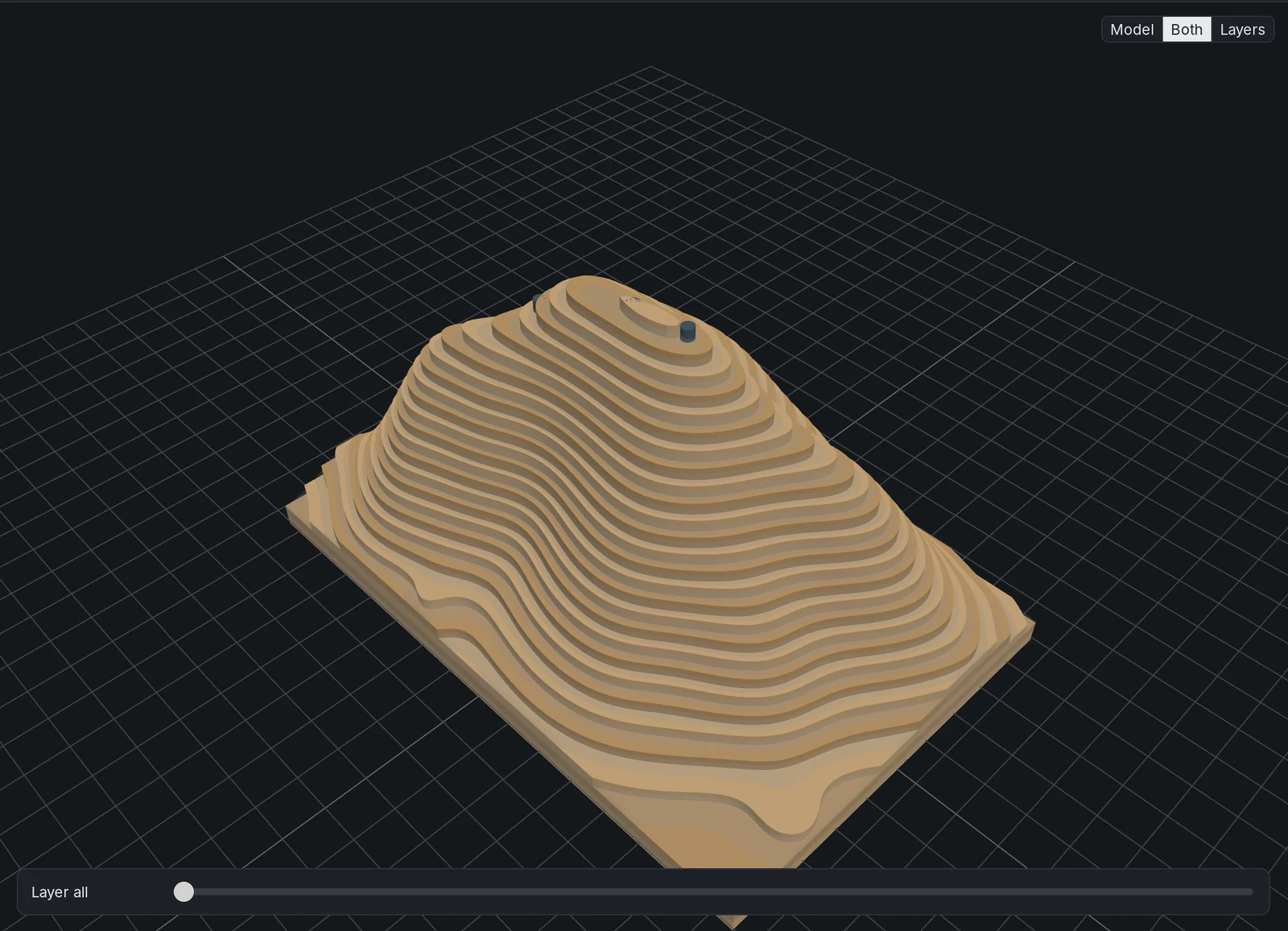
A terrain model, 27 layers on two 400 × 300 mm sheets CutEngrave

Three ways to build a model

Choose how the piece goes together. LayerCut works out every slot, joint, pin hole and label, and shows you the finished piece in 3D before you cut anything.

Stacked

Parallel layers glued flat, like a contour map. The classic way to build busts, terrain, bowls and signs.

  • Alignment pin holes placed where every pair of layers can share them
  • Each layer engraved with its number and a guide showing where the next one sits
  • Hollow mode turns layers into rings, with a solid floor or lid if you want one
  • Slice at the middle, bottom or top of each layer
How stacked mode works

LayerCut showing a terrain model built from 27 stacked plywood layers with alignment pins

Interlocking

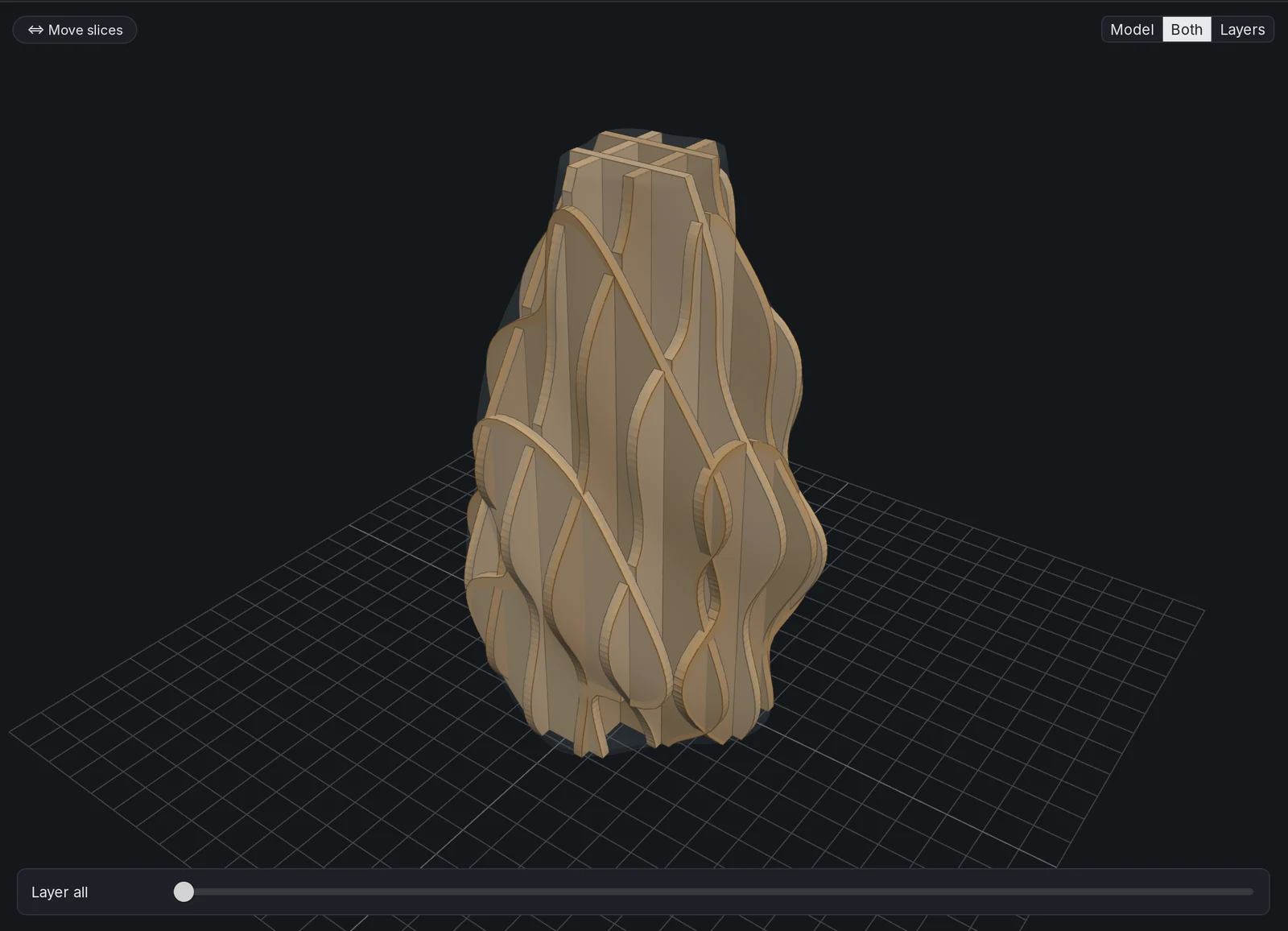
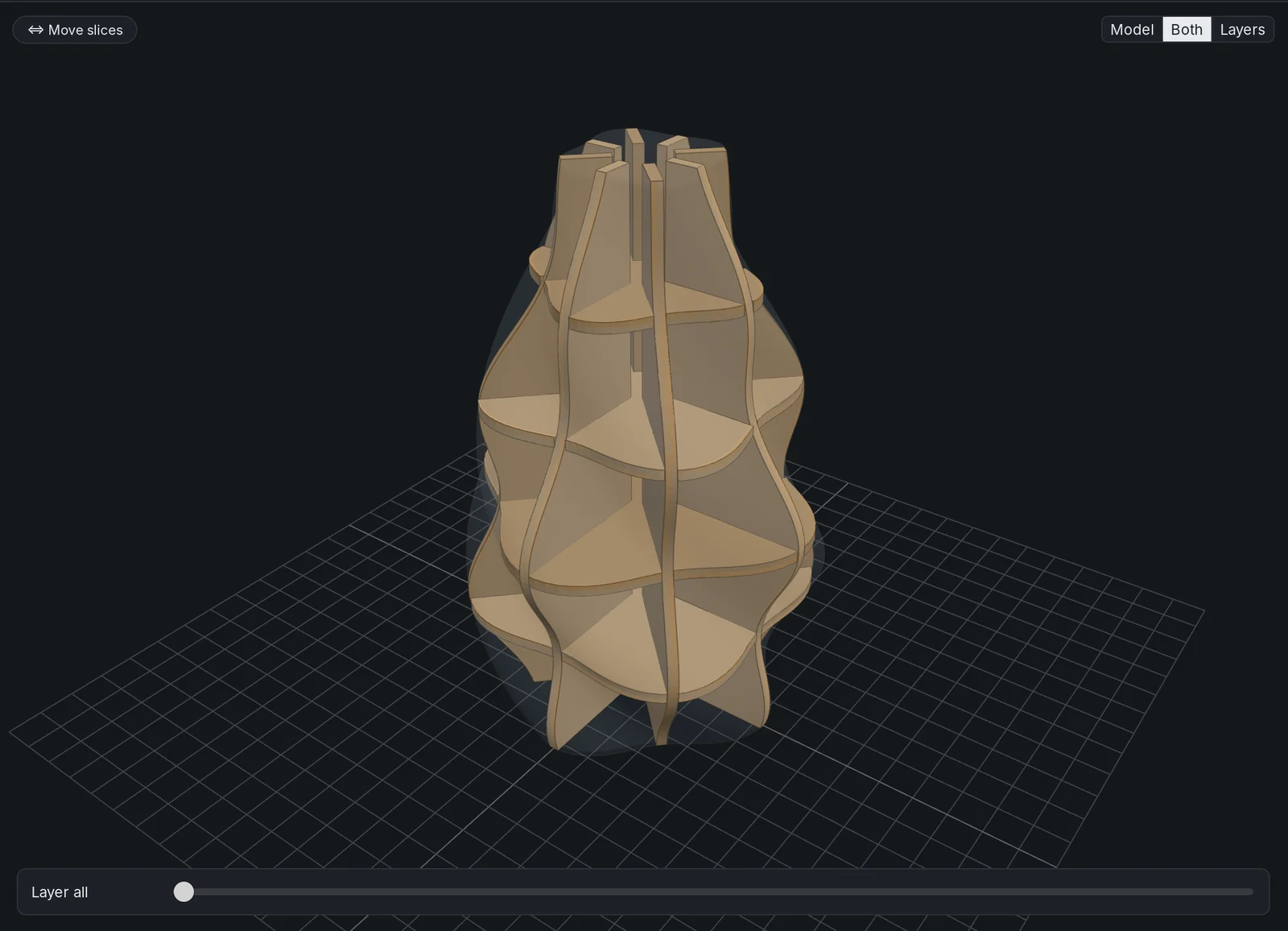
Crossing slices that slot together without glue. Uses a fraction of the material of a stacked build.

  • Grid: two sets of slices at right angles, like an egg crate
  • Radial: spokes around the center held by rings, for vases, pots and lamps
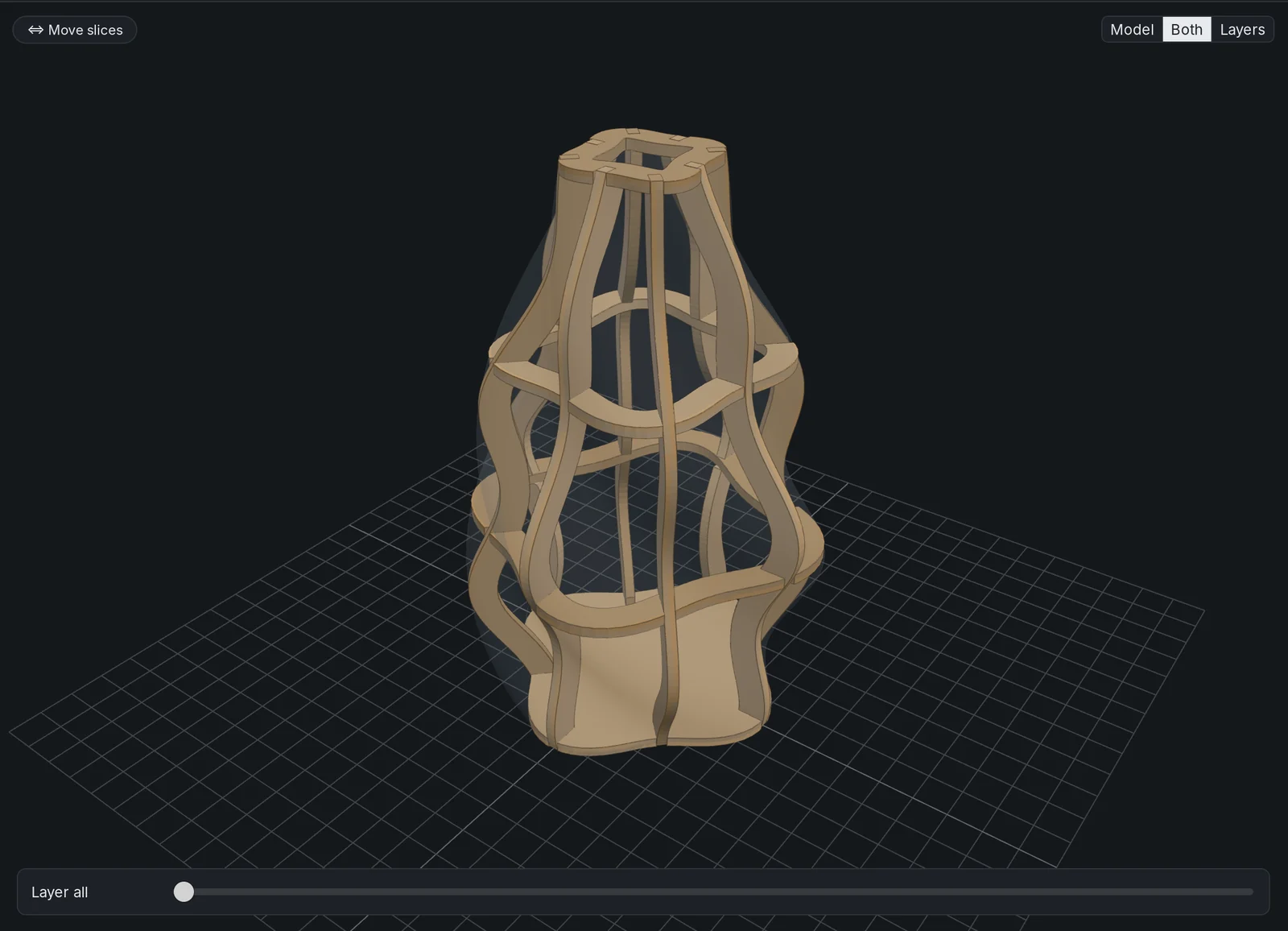
  • Hollow shell: rings become bands and spokes become ribs inside the wall
  • Each slot is engraved with the name of the slice that goes into it
  • Slots that can't slide together, thin bridges and split pieces are flagged before you cut

Grid and radial in the docs

A vase built from a grid of interlocking slices

Panels

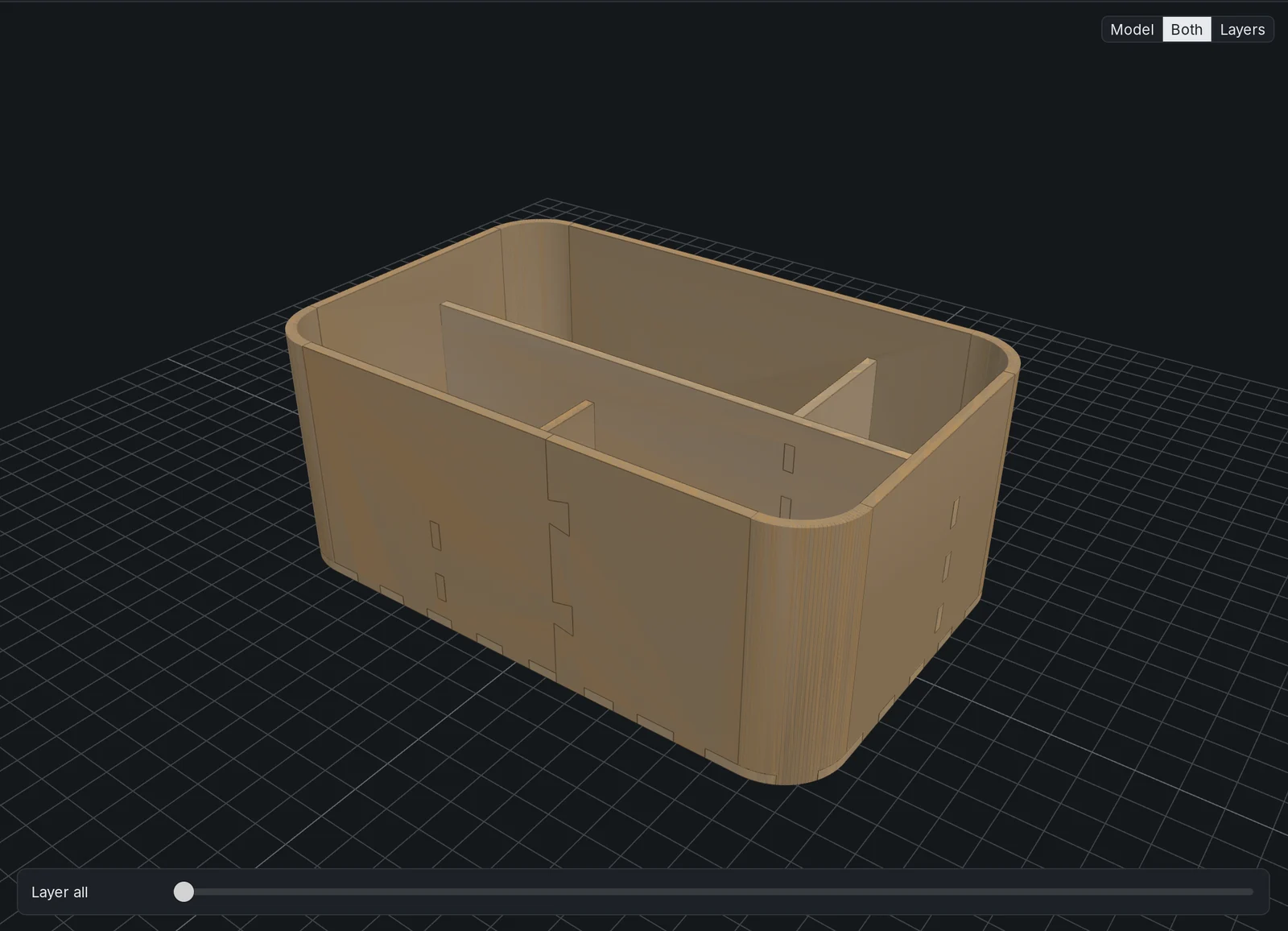
For boxes, trays and desk organizers. Each wall of the model becomes a flat panel, and the joints are added for you.

  • Finger joints at outside corners, tabs and slots where dividers meet a wall
  • Half-lap slots where two dividers cross
  • Living hinges where a wall curves round a corner
  • Angled joints for ramps and sloped walls
  • Keep outer size makes the finished piece exactly the model's size

How panels mode works

A desk organizer with rounded corners built from five plywood panels with finger joints

Cut sheets ready for the laser

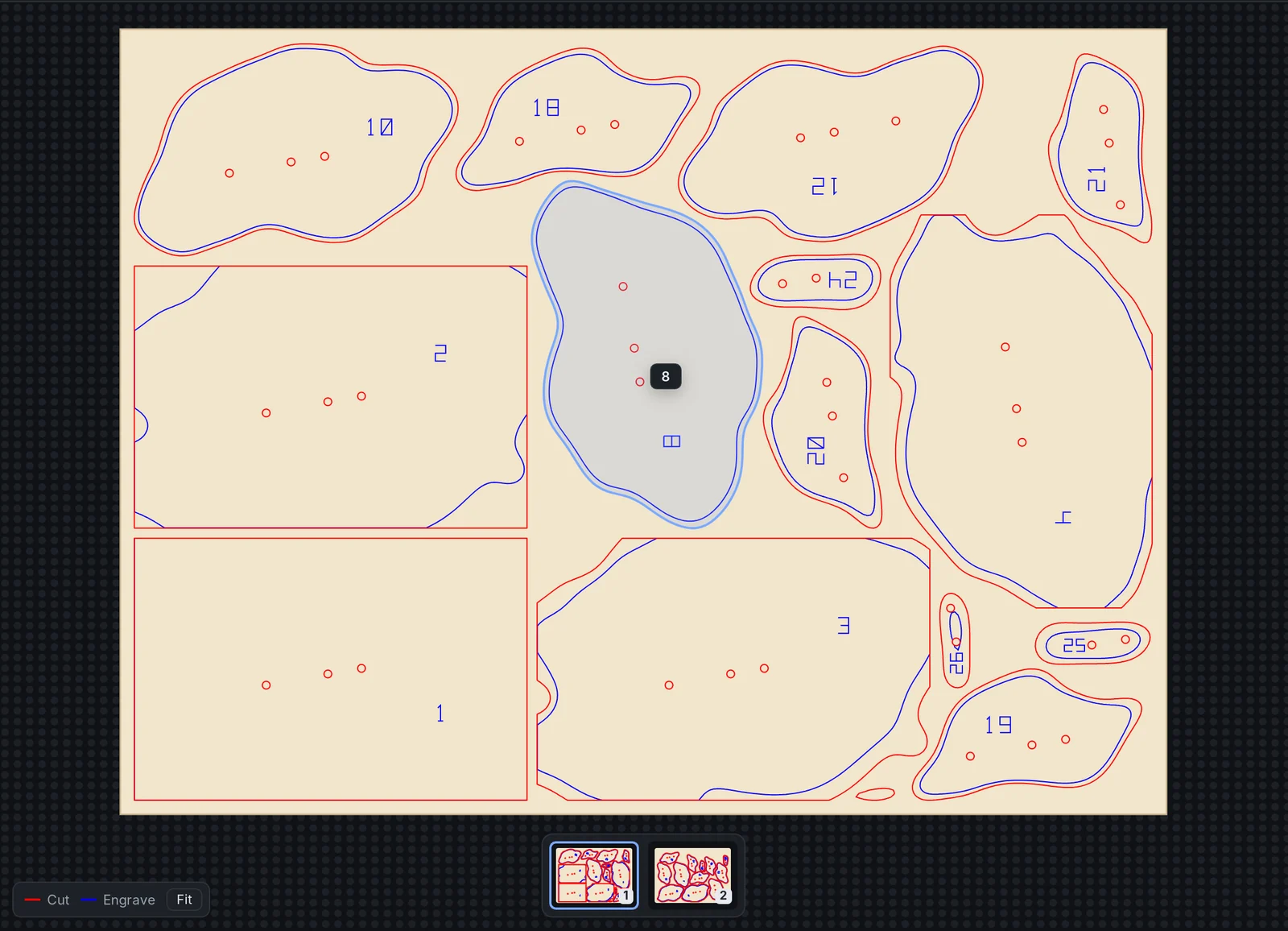
Switch to the Sheets view to see every sheet full size on a laser bed. Hover a piece to see its name; click it to find it in the 3D model.

The Sheets view: terrain layers nested tightly on a plywood sheet, with red cut lines and blue engraved numbers
True-shape nesting
Pieces are packed by their real outlines, and small parts go inside the holes of bigger ones. You see how much of each sheet is used.
Kerf compensation
Outlines grow and holes shrink by half your kerf, so parts come out the size you designed.
Native LightBurn files
One .lbrn2 project per sheet, with cut and engrave on separate layers and your speeds and powers already set.
Exact SVG
Millimeter-sized SVGs that import at true size in LightBurn, Inkscape and Illustrator.
Assembly guide
A text guide lists every piece in build order, with pin lengths and which slot goes where.

Rounded corners, one piece of wood

When a wall curves round a corner, LayerCut cuts it and the flat walls on either side as one long strip, with rows of slits across each curve so the sheet bends.

The base gets finger joints that follow the curve, dividers slot into the strip, and a wall that goes all the way round is closed with dovetail keys. Living hinges in the docs

The wall strip of the organizer above, 526 mm long. Each band of slits bends round one corner.

From model to cut file in four steps

  1. Open a model

    Drop an STL or OBJ file on the window. Set the size by scale or by finished height.

  2. Pick your material

    Choose a saved material with its thickness, kerf and laser settings, measured once with the fit test.

  3. Choose how it's built

    Stacked, interlocking or panels. Check the 3D preview and the notes on anything that won't work.

  4. Export and cut

    Save LightBurn and SVG files plus an assembly guide. Open them in LightBurn and start the job.

Measure once, fit every time

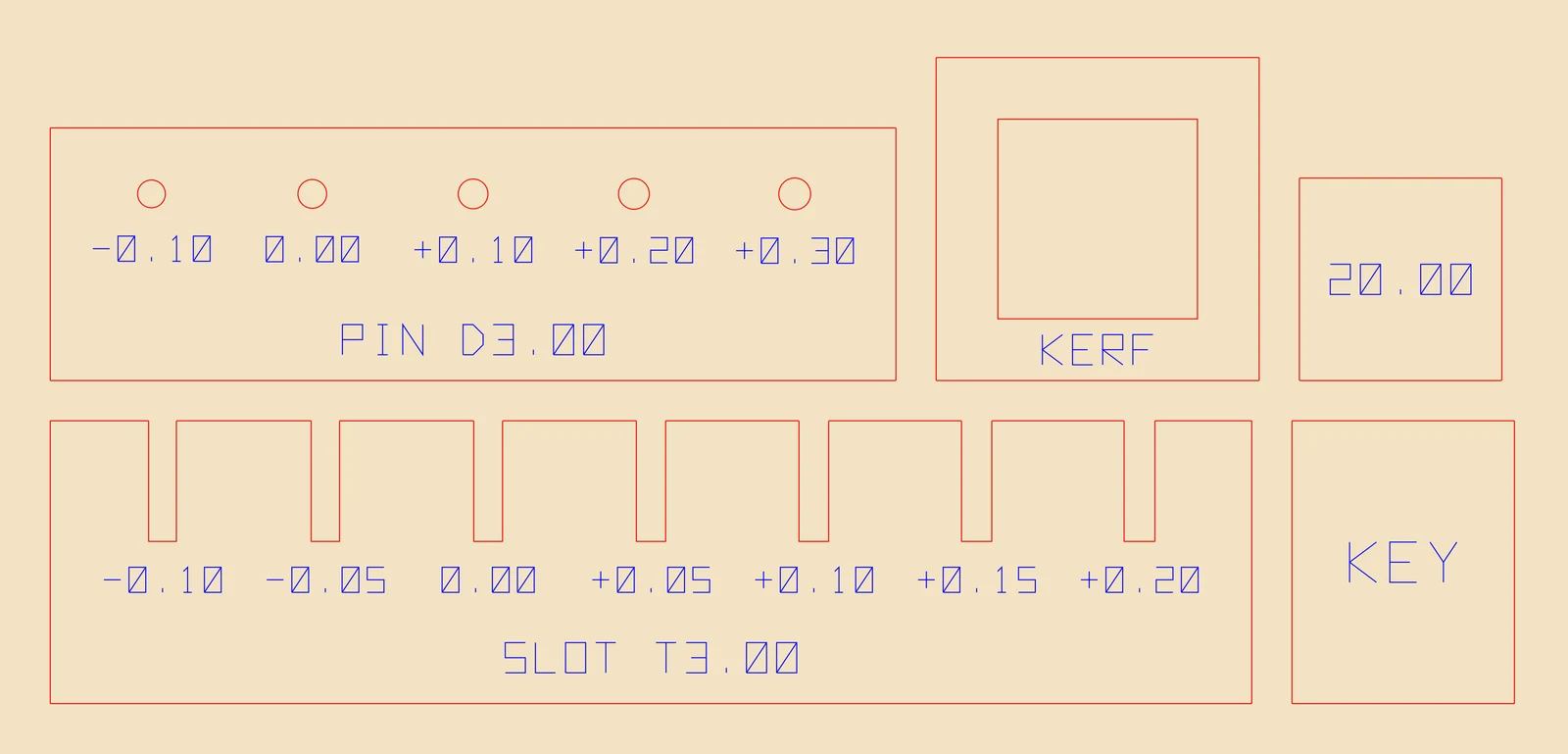
Every laser, lens and sheet of plywood is a little different. Cut the 156 × 75 mm fit test once per material and LayerCut tells you exactly what to enter.

  • A 20 mm square to measure your true kerf
  • A slot comb from −0.10 to +0.20 mm for interlocking fits
  • A pin plate to pick the right dowel hole

Save the results as a material, like “Birch 3 mm on the K40”, and every export uses them.

Cutting the fit test

The fit test sheet: kerf square and frame, a slot comb with labeled clearances, a key strip and a pin hole plate

Pricing

Start free. Buy Pro once and keep it. No subscription, no account, no internet connection needed.

Free

$0

Free forever, for personal and commercial work.

  • Stacked mode, including hollow layers and pins
  • Interlocking grid and radial, including hollow shells
  • Preview panels and living hinges in 3D and on the sheets
  • SVG export
  • Materials, fit test and true-shape nesting
Download

Pro

$59 one-time

Includes 12 months of updates. Renew updates for $25 a year, whenever you like.

  • Everything in Free
  • Export panels: finger joints, tabs, half-laps and angled joints
  • Export living hinges and closed-loop walls with dovetail keys
  • Native LightBurn .lbrn2 export with your cut and engrave settings
Available with version 1.0

During the beta, everything is free. Every feature, Pro included, is unlocked until version 1.0. Your Pro license keeps working forever on every version released within its update year. How licenses work

Download LayerCut

One app for both editions. Pro unlocks with a license key, with no reinstall.

What you need

  • A Mac with macOS 11 Big Sur or later, or a PC with 64-bit Windows 10 or 11
  • 4 GB of memory; 8 GB for large, detailed models
  • Under 100 MB of disk space
  • Models as STL or OBJ files, in millimeters
  • LightBurn for .lbrn2 files, or any program that opens SVG

Installing

  • Mac: open the .dmg and drag LayerCut to Applications.
  • Windows: run the setup file. It installs for your user account and doesn't need an administrator. If Windows shows “Windows protected your PC” for a new release, click More info, then Run anyway.
  • LayerCut checks for updates when it starts and asks before installing one.

Install and first cut

Questions

Which lasers does LayerCut work with?

Any laser that LightBurn drives, or any software that imports SVG. LayerCut writes the files; your usual laser software runs the machine. It's been designed around diode and CO₂ lasers cutting plywood, MDF and acrylic.

Do I need LightBurn?

No. Every edition exports millimeter-exact SVG, which works with LightBurn, Inkscape, xTool Creative Space, Glowforge and others. Pro adds native .lbrn2 projects with your cut and engrave layers already set up.

Where do I get 3D models?

Anything that exports STL or OBJ: Fusion, Onshape, Tinkercad, Blender, SketchUp, or a model library. Panels mode works best on models designed with thin, flat walls, such as boxes and organizers.

Does LayerCut need an internet connection or an account?

No. It runs entirely on your computer and your models never leave it. It only goes online to check for updates, and a Pro license key is checked offline.

Can I sell what I make with it?

Yes, with either edition. Check the license of the 3D model you start from, since that's set by its designer.

What happens when my year of updates ends?

Pro keeps working on every version released during your update year, forever. Newer versions run as the free edition until you renew, or you can keep using the last version you're covered for. More about licenses

What's coming next?

Signed installers and automatic updates first, then living hinge settings, angled grid slices, common-line cutting and more. See the roadmap.

Can I use one license on my desktop and my laptop?

Yes. A license is for one person, on any computers they use.